Prepare Edge Host
Edge clusters are Kubernetes clusters configured on Edge hosts. These hosts can be either bare metal or virtual machines and must have the Palette agent installed.
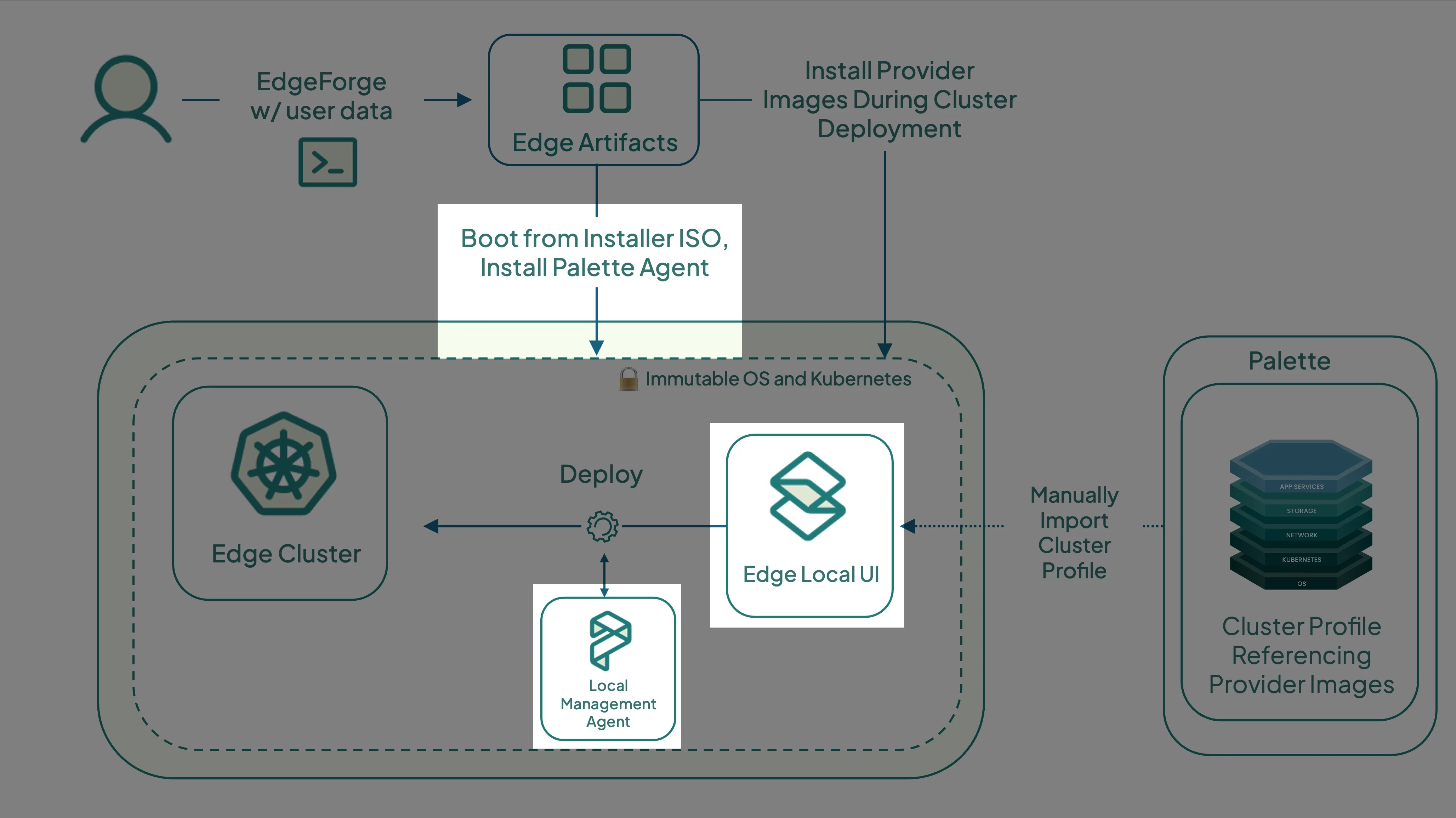
In this tutorial, you will learn how to install the Palette agent on your virtual or physical host. You will boot the host using the Edge installer ISO created in the Build Edge Artifacts tutorial, and then let the host register with Local UI. Locally managed Edge devices require access to registries that contain content bundles, either through the internet or the local network, in order to download the required packs for cluster deployment. The following architectural diagram illustrates the workflow covered in this tutorial:
- Installation of the Palette agent.
- Self-generation of the Host UID.
- Accessing the Edge device with Local UI.
Prerequisites
- A bare metal or virtual Linux host with an AMD64 processor architecture (also known as x86_64) and the following
minimum hardware specifications.
- 2 CPUs
- 8 GB memory
- 300 GB storage
- If you plan to use a virtual machine as the Edge host, ensure that you have a Virtual Machine Manager (VMM) installed. This tutorial uses Oracle Virtualbox version 7.2.6 as an example. Additionally, the underlying physical host must allow the creation of a VM that meets the same minimum hardware requirements.
- The Edge installer ISO file built in the Build Edge Artifacts tutorial. If you are using a physical device as the Edge host, ensure the device has USB ports, the ISO file is flashed to a USB drive, and you are able to modify the host's boot order settings to boot from the USB drive.
- A DHCP-enabled network with at least one available IP address for the Edge host.
- A Palette account.
- The host must have access to the internet.
Set Up Edge Host
- VM Host
- Bare Metal Host
Once the Edge artifacts and cluster profile have been created, you can proceed with the VirtualBox VM deployment. The VM will use the Edge installer ISO to bootstrap the Edge installation and serve as the Edge host for your cluster.
Launch the VirtualBox application and click New to create a new VM.
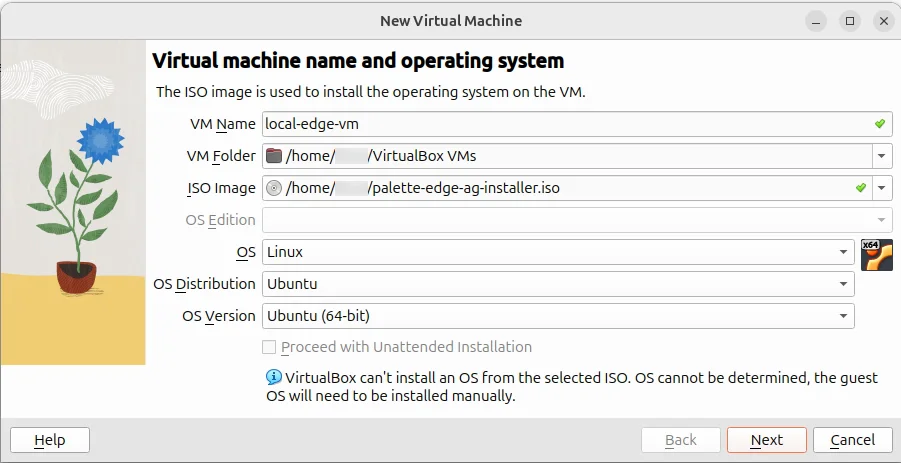
Give the machine a name, for example, local-edge-vm.
In the ISO Image field, select the Edge installer ISO file you built in the
Build Edge Artifacts tutorial. The ISO file is located in the CanvOS/build directory.
Set the machine Type as Linux, the OS Distribution as Ubuntu, and the Version as Ubuntu (64-bit), and click Next.
Adjust the Base Memory to 8000 MB and Processors to 2 CPU. Click Next to proceed.
Set the Disk Size to 300 GB and ensure the option Pre-Allocate Full Size is not checked. Click Next.
These are the minimum hardware requirements for an Edge host. In production environments, the required configuration may vary.
Confirm the VM settings and click Finish to create the VM.
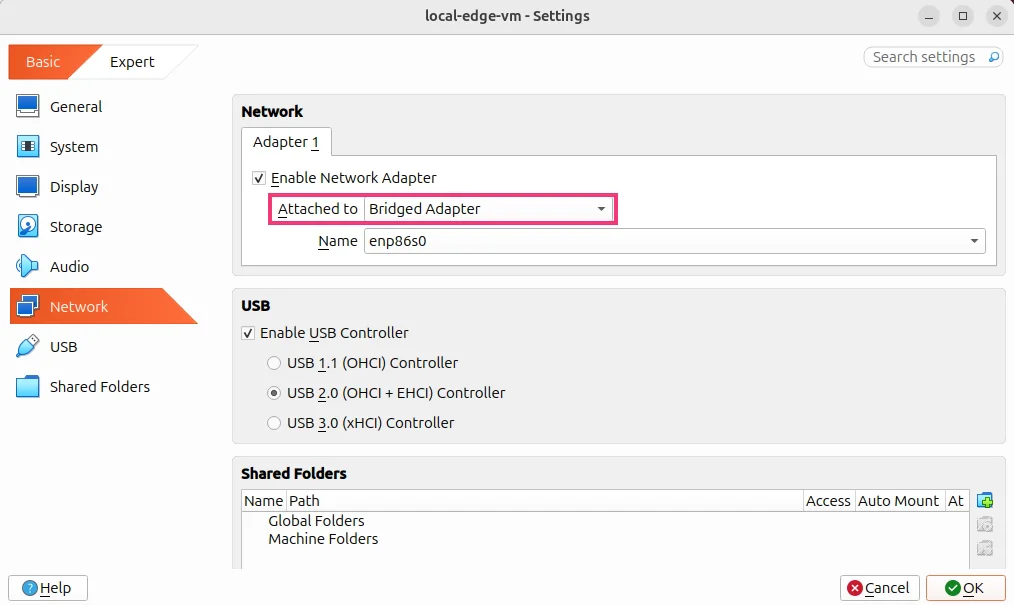
Select the VM to adjust its network settings. Click Settings, then select Network.
Change the Attached to option from NAT to Bridged Adapter. This allows the VM to receive an IP address from the same network as the host. Click OK.
Select the created VM and click Start to turn it on. The Edge installer bootstraps the Palette Edge installation onto the VM.
Wait for the Edge Installer to complete copying content to the VM. This process may take a few minutes. When the
installation is complete, the VM shuts down automatically. This behavior is configured in the user-data file, as
specified in the Prepare User Data tutorial with the line poweroff: true.
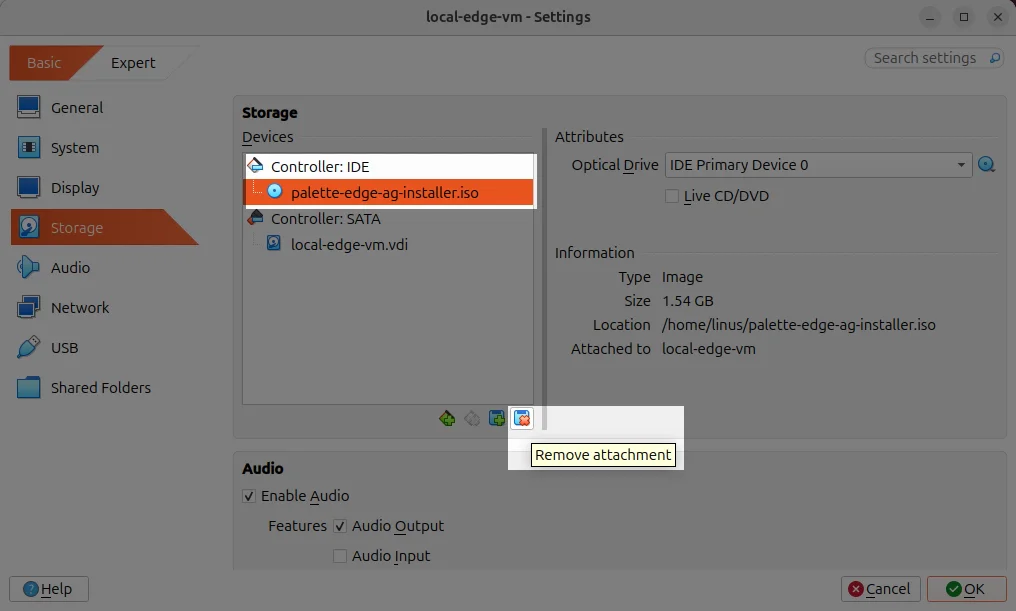
After the VM powers off, select it in VirtualBox. Click Settings, then select Storage.
Select the Edge installer ISO and click Remove Attachment to remove it from your VM. Confirm the deletion with Remove and click OK to close the settings window. Leaving the installer ISO attached would cause the VM to boot from it again, restarting the installation process.
Once the Edge artifacts and cluster profile have been created, you can proceed with the Palette agent installation. The bare metal device will use the Edge installer ISO to bootstrap the Edge installation and serve as the Edge host for your cluster.
Insert the USB drive containing the flashed Edge installer ISO into the powered-off bare metal device.
Power on the device and enter the Basic Input/Output System (BIOS) interface. You can accomplish this by pressing F2, F1, or F10 immediately after powering on the device. The exact key varies by manufacturer. Consult the manufacturer instructions to learn how to enter the BIOS interface.
In the BIOS interface, navigate to the boot sequence section and locate the boot sequence list.
Find the entry with your USB drive and move it to the top of the list. Save the changes and exit the BIOS interface. The device then boots from the USB drive and begins installing the Palette agent.
Wait for the Edge Installer to complete copying content to the device. This process may take a few minutes. When the
installation is complete, the device shuts down automatically. This behavior is configured in the user-data file, as
specified in the Prepare User Data tutorial with the line poweroff: true.
Once the device powers off, remove the USB drive. Since it was previously selected as the boot volume, leaving it inserted would cause the system to boot from it again, restarting the installation process.
Register Edge Host
You can provide site-specific Edge installer configuration user data if you need to apply new values or override default values from the Edge installer user data you created during the EdgeForge process. Refer to Apply Site User Data for more information.
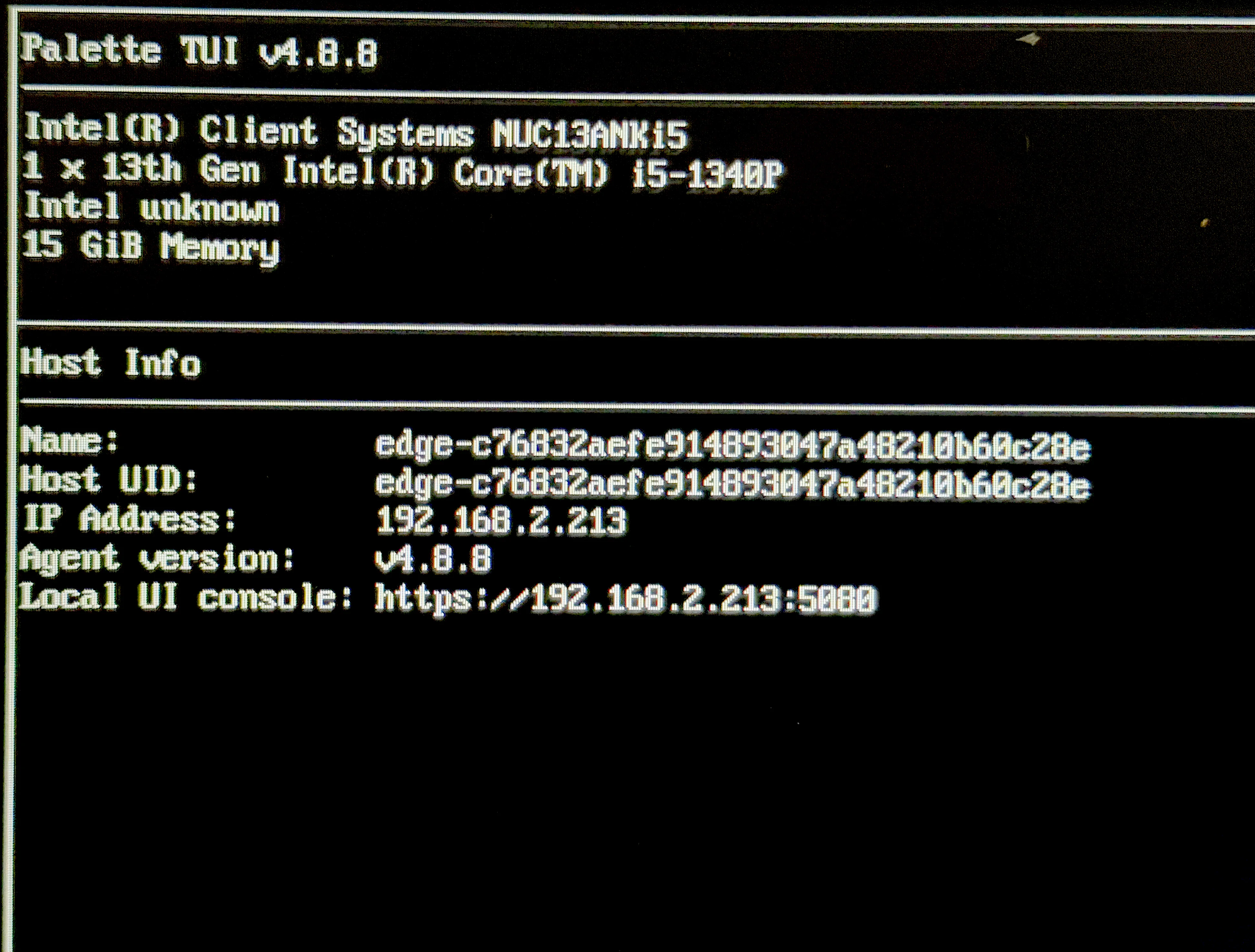
Power on the Edge device. It will automatically boot to Palette eXtended Kubernetes Edge Registration, reboot, and generate an Edge Host UID. Wait until an IP address is assigned. The following image displays the Edge TUI on an Intel NUC device after the device has generated a Host UID and obtained an IP address.
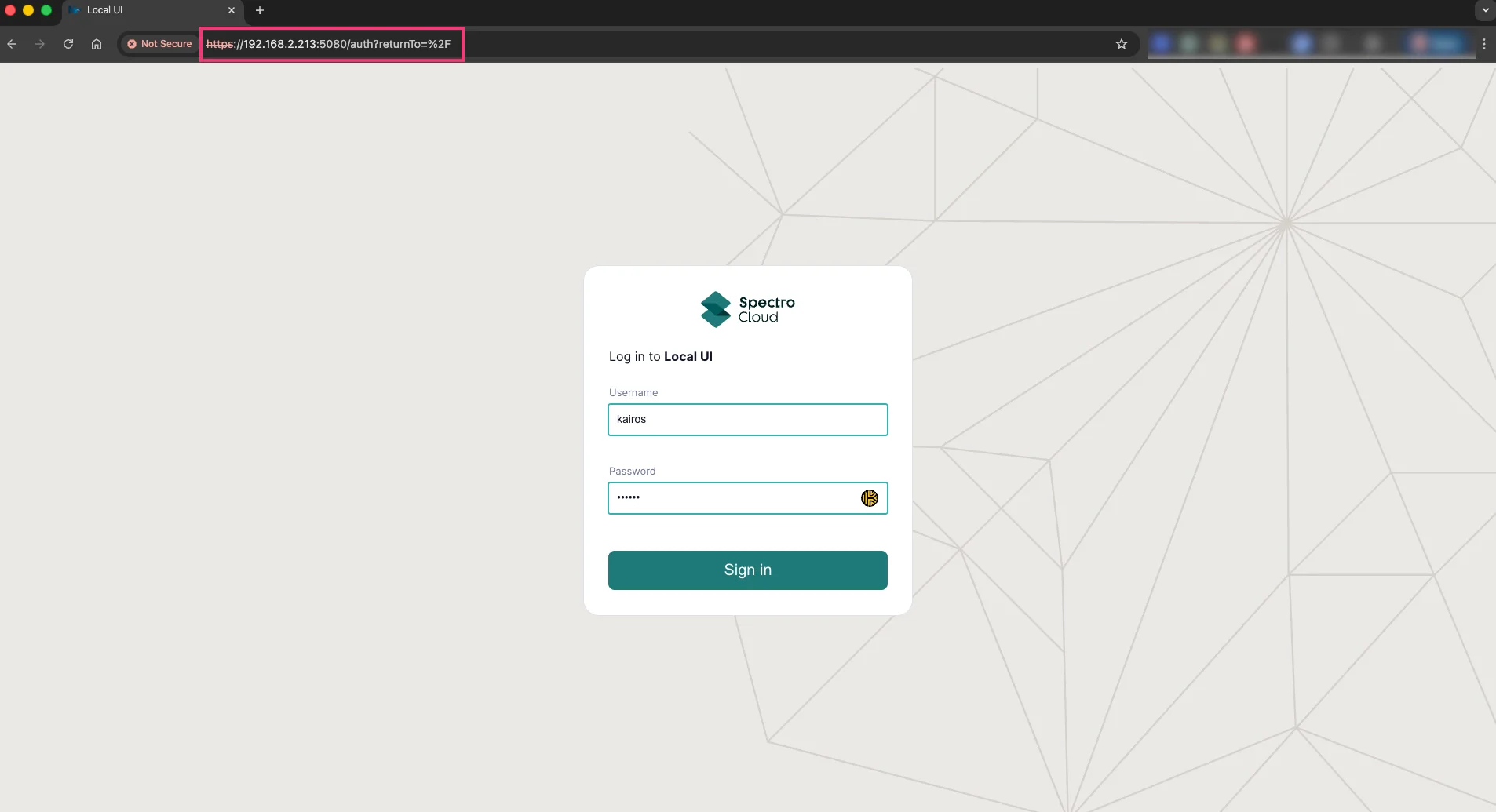
Log in to Local UI (https://<ip-of-edge:5080) with the username and password you defined in the
Prepare User Data tutorial. The following image displays the Local UI login screen.
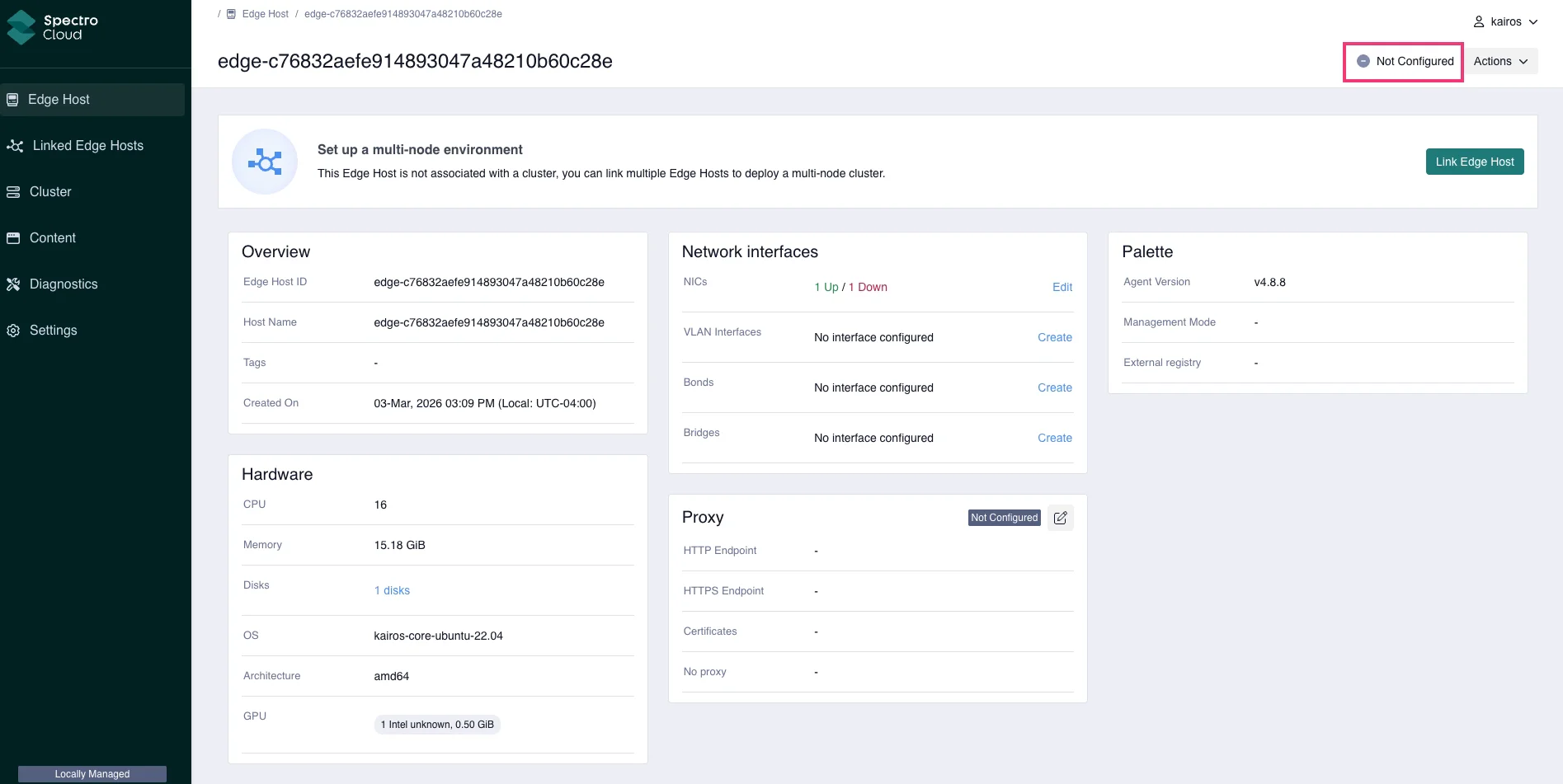
The Edge host will show as Not Configured as there is no Edge cluster deployed. The following image displays a newly installed locally managed Edge host.
Next Steps
In this tutorial, you learned how to install the Palette agent on your host and register the host with Palette. We recommend proceeding to the Build Content Bundle tutorial to learn how to use the registered Edge host to deploy an Edge cluster in Palette.